
Don’t Overlook Billable Expenses in Xero
Materials for a job, courier charges or travel for a client visit can be easy to overlook when preparing your final invoices before Christmas. If you have agreed to pass these costs on to a customer, leaving them unbilled means your business carries the cost. Xero’s billable expenses feature helps you keep track of these purchases and include them in customer invoices. Before the holiday break, check whether anything has been missed.
What Can You Assign to a Customer?
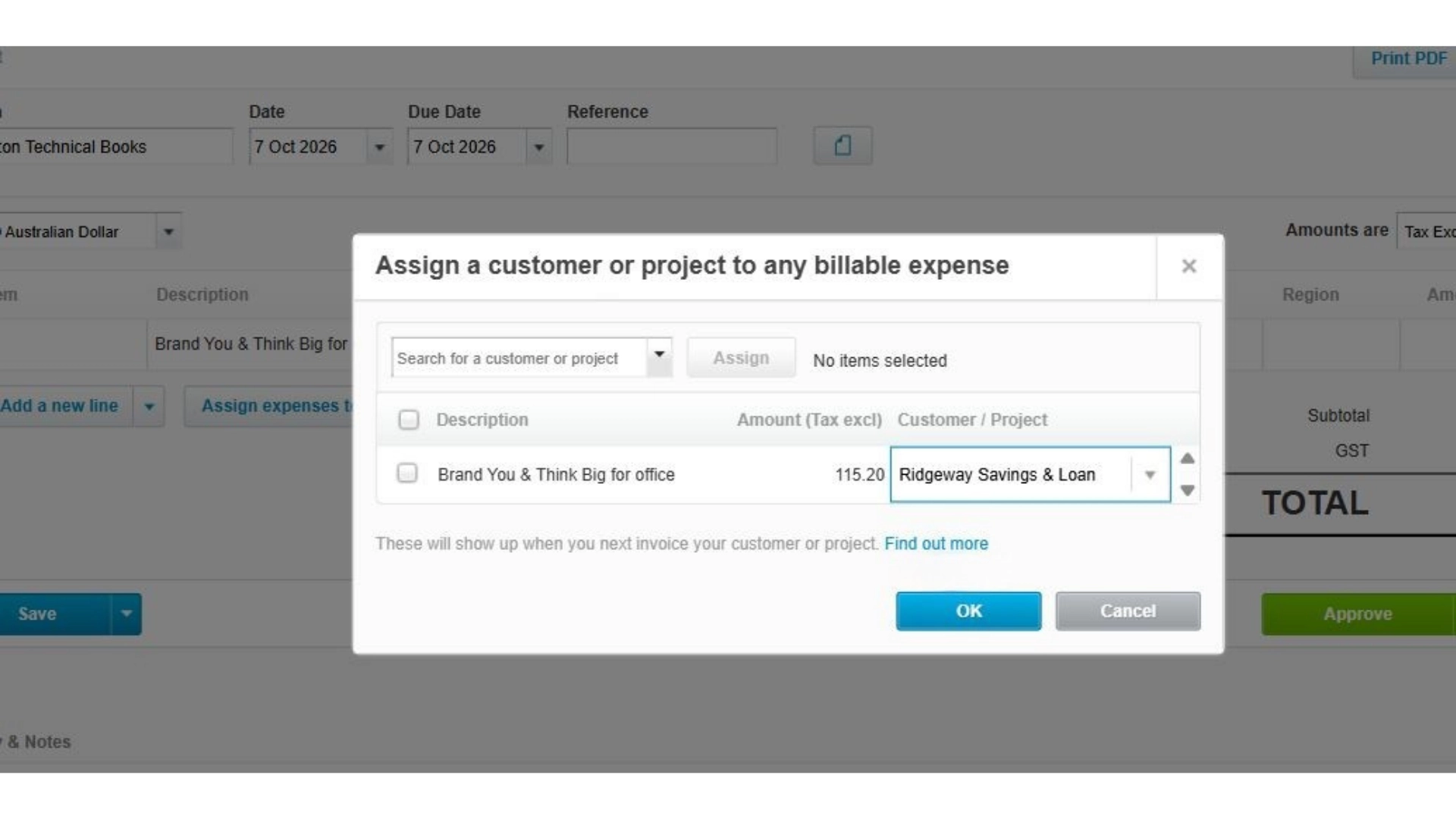
A billable expense is a cost your business incurs that you intend to charge to a customer, such as job-specific materials, delivery fees or agreed travel expenses. For example, an electrician buys a replacement fitting for a customer’s job. Assigning that purchase to the customer in Xero helps keep it available for invoicing. Check your quote or agreement first: costs already included in a fixed price should not be charged again.
Record the Cost and Assign It
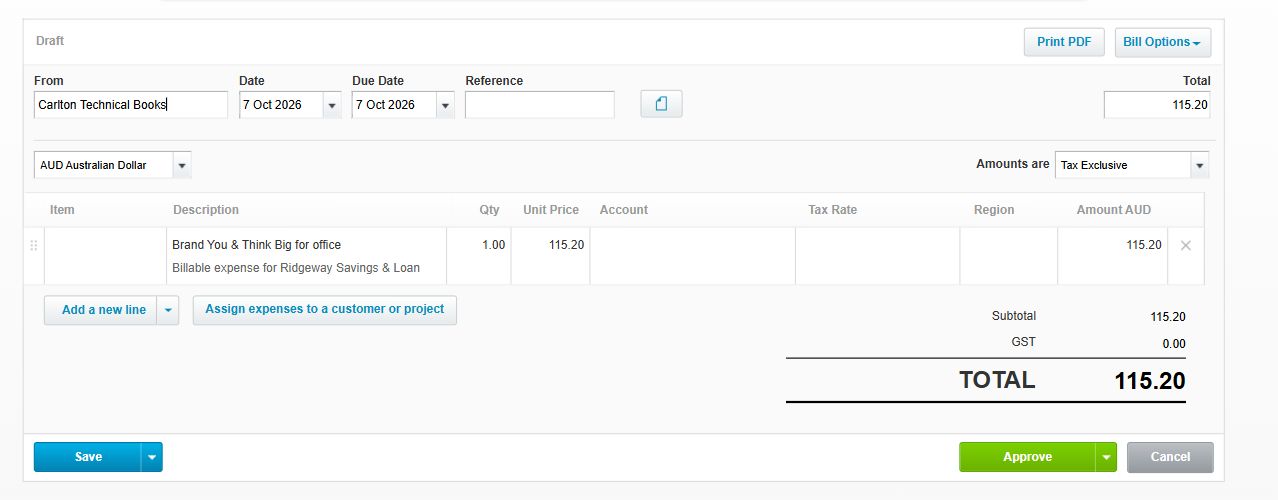
When entering a supplier bill or spend money transaction, assign the relevant expense lines to the customer. Use Assign expenses to a customer or project, or the Assign expense column in the newer bill layout. Select the correct customer and items, then save or approve the transaction as appropriate. Attach the receipt or supplier invoice and use a clear description. If a purchase covers several jobs, separate the costs into lines so each can be assigned correctly.
Review What Still Needs Invoicing
Run the Billable Expenses – Outstanding report to review assigned costs that have not yet been invoiced. You can also review billable expenses through Xero’s Sales overview. Check the customer, description and amount against your records. This review only picks up costs already assigned as billable, so also check recent purchases for anything you forgot to assign. Resolve any old or unexpected items before adding them to an invoice.
Add the Expenses to Your Invoice
Create an invoice for the customer and add the relevant billable expenses. Review the descriptions, agreed charges and applicable tax treatment before approving and sending it. Assigning a cost to a customer does not send an invoice or collect payment. Allow time to resolve questions before customers close their offices, and use your agreed payment terms. Once you have caught up, assigning expenses as you record them can help prevent another backlog next month.
A quick pre-holiday check can help you recover agreed costs and keep your invoicing up to date. For more guidance, see Xero’s instructions for entering bills and spend money transactions. If you need help using billable expenses, contact the MKG Partners team.