

Xero Shortcuts, Tips and Tricks
Xero has plenty of small features that can save you time day to day, but many of them are easy to miss. Whether you are entering transactions, reviewing reports, or just navigating the system, a few simple shortcuts can make a big difference. Here are some practical Xero tips and tricks to help you work more efficiently.
Do You Know About Xero’s Inbuilt Calculator?
One of the most useful but overlooked features in Xero is the inbuilt calculator. Instead of switching between apps or using your phone, you can do quick calculations directly inside Xero.
Where You Can Use It
You can type calculations straight into:
- Quantity, Unit Price, and Discount fields in transactions
- Debit and Credit fields in manual journals
What It Can Do
You can perform:
- Addition (
+): To add numbers together. - Subtraction (
-): To subtract one number from another. - Multiplication (
*): To multiply numbers. - Division (
/): To divide numbers. - Grouping (
( )): To prioritise operations within your calculation.
Simply enter your calculation in any of these fields and press Enter or Tab. Xero instantly displays the result, ensuring your transactions are both fast and accurate.
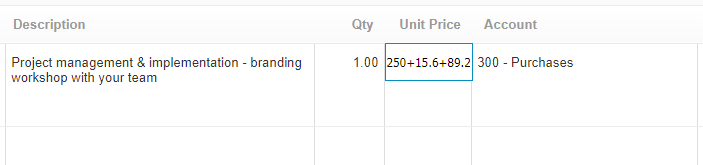
Entering your calculation directly into the text box of supported fields
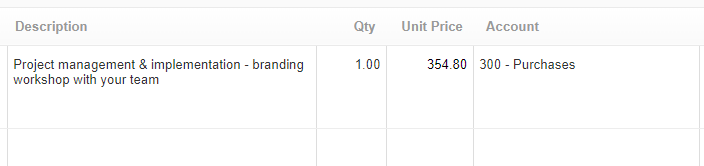
Press Enter or Tab and Xero will instantly display the result
Xero Shortcuts
Did you know Xero has shortcuts designed to make your accounting work quicker and smoother? These keyboard shortcuts are simple yet powerful tools that can help you navigate and manage tasks efficiently. If you’re looking to streamline your Xero routine, learning these shortcuts is a great place to start,
To search or navigate to a specific screen using shortcuts:
1. Press the forward slash ‘/’ key or click the search icon to activate the search function.
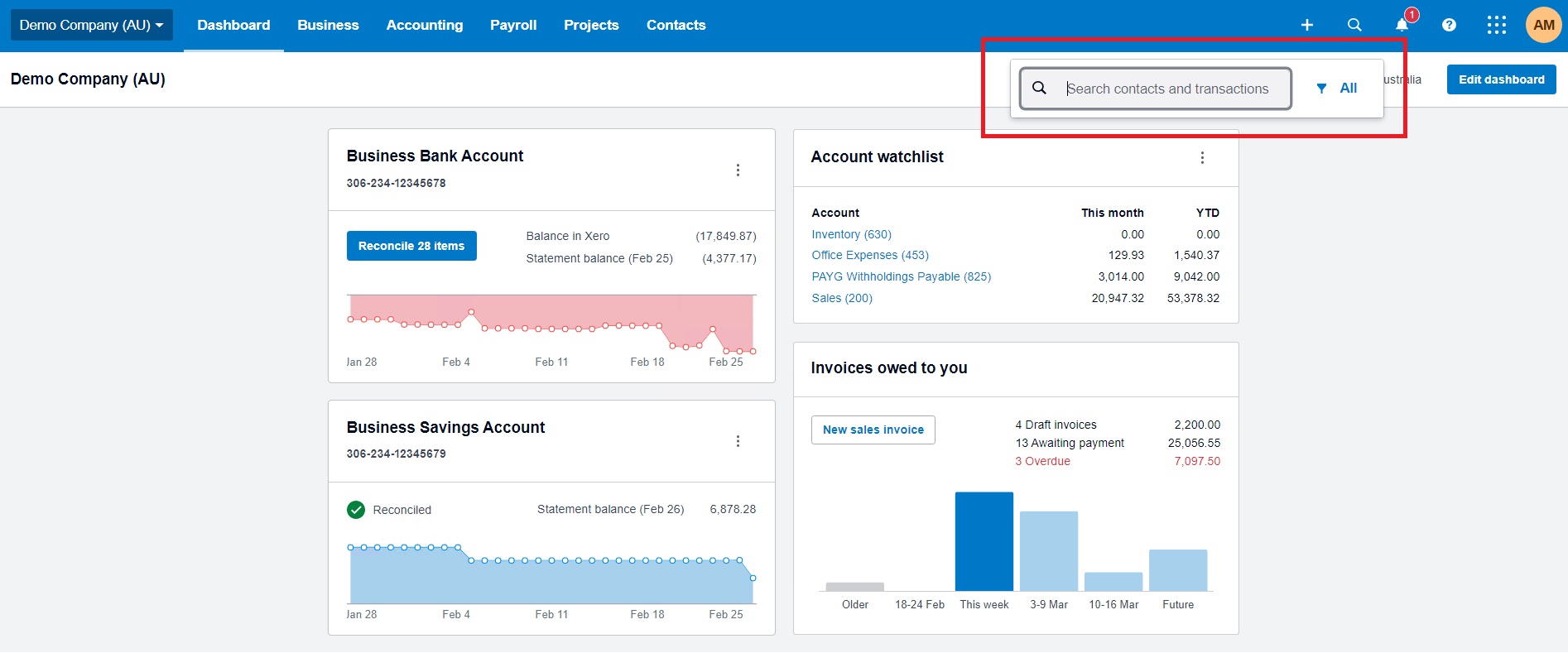
2. Enter the shortcut key for the desired screen. Use the ‘TAB’ key to cycle through search options that appear.
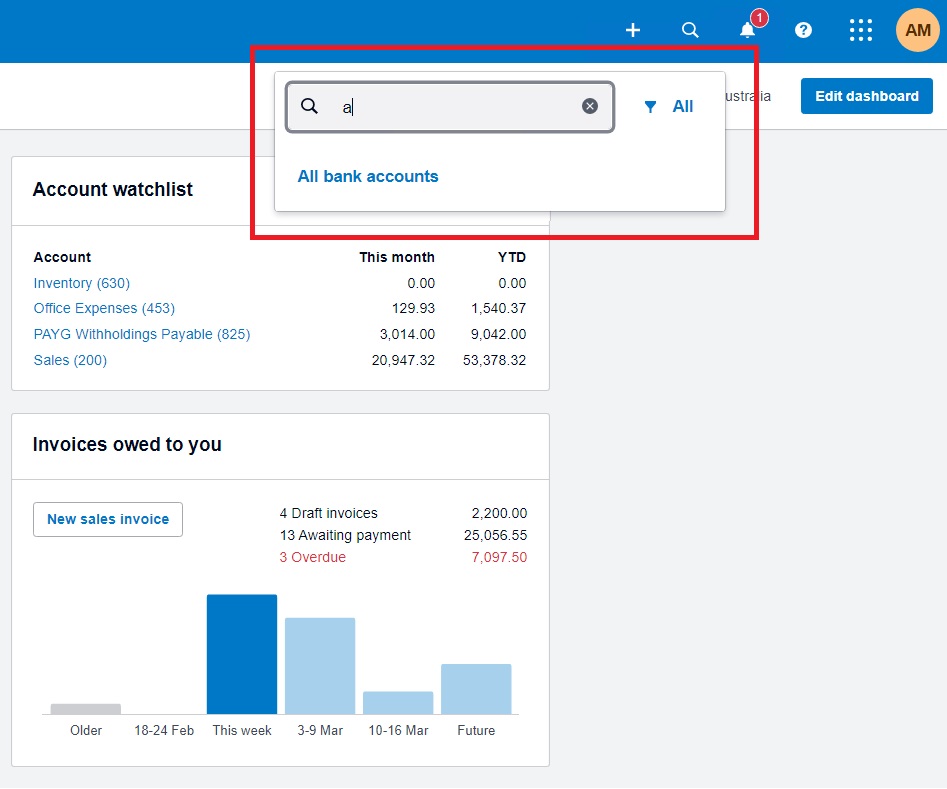
Example of using the ‘a’ key to naviage to all account
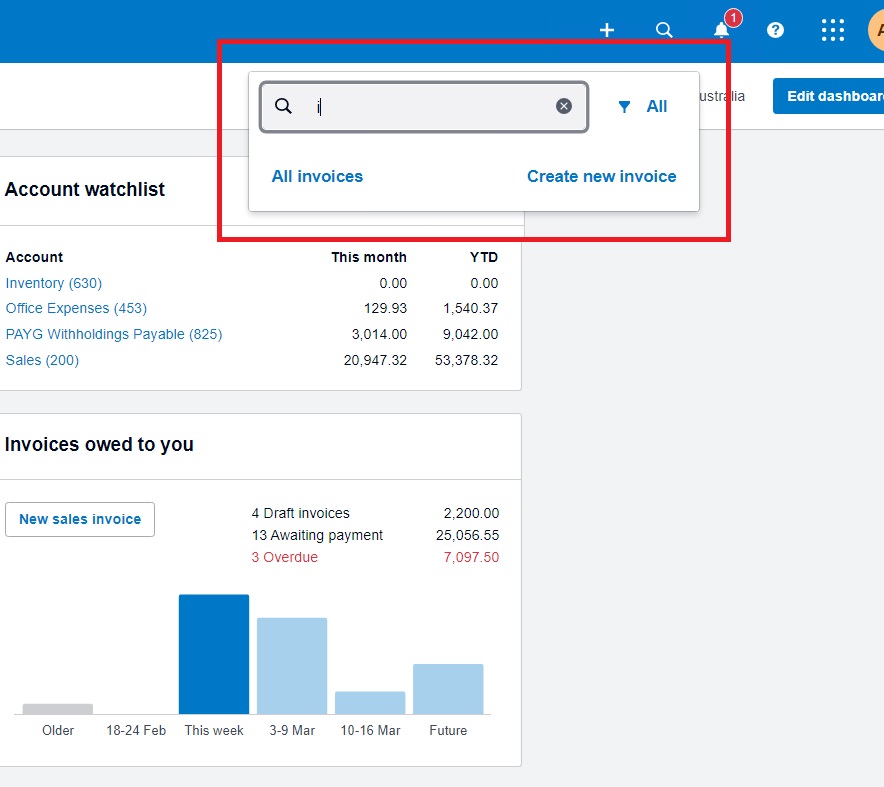
Example of using the ‘i’ key to naviage to all account
3. Following is the list of shortcut key you can use to jump to the corresponding page directly:
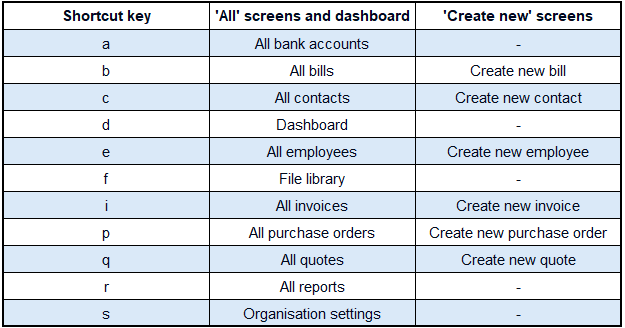
By integrating these shortcuts into your daily use of Xero, you can significantly reduce the time spent navigating the software. This allows you to focus more on analysing data, making strategic decisions, and managing your business effectively. Check out Xero Central for additional tips and tricks.
Additional Xero Tips to Make Life Easier
Here are a few extra features that can save time and reduce manual work in Xero:
- Bank rules
Set up rules to automatically code recurring transactions with the correct account and GST. If you are entering the same expense every month, this should be automated. - Find & Recode
Bulk update transactions in one go. This is especially useful when fixing coding errors or cleaning up your file at year end. - Use the Xero mobile app
With the Xero mobile app, you can snap and upload receipts on the spot, reducing lost documents and admin later. - Repeating transactions
Set up regular bills or invoices so they are created automatically. This keeps things consistent and saves time each month.
Getting comfortable with these small features can make your day-to-day work in Xero much faster and less frustrating. It is not about learning everything at once, but gradually building better habits. At MKG Partners, we regularly help clients set up Xero in a way that actually works for them. If you are not sure whether you are using Xero efficiently, or if things feel more manual than they should be, it may be time for a quick review.